Apple Music Analytics: A Guide for Independent Artists
Apple Music analytics live in three places, and which one you need depends on what you’re trying to do. For daily monitoring, use Apple Music for Artists, also called Measure. For release-week snapshots, use New Release Insights inside that same dashboard. For exports, custom queries, or pulling data into your own systems, use the Music Analytics API or the Sales & Trends partner portal.
Your first move, before any of that matters: claim and verify your artist page. If you’ve never logged in, do it today, and if your distributor hasn’t confirmed your profile mapping, ask them to check it now, not the week your single drops.
Here’s the quick breakdown of what each surface actually does for you:
- Measure (Apple Music for Artists): daily dashboards, plays, listeners, and Trends filtering
- New Release Insights: same-day snapshots for your first week after a release
- Music Analytics API / Sales & Trends: partner-level exports and programmatic access for teams that need to automate reporting
Key Takeaways
Apple Music analytics work best when artists pair Measure’s daily dashboards with New Release Insights during launch week and the Music Analytics API or Sales & Trends for deeper exports.
| Point | Details |
|---|---|
| Claim your profile early | Verify your artist page and confirm distributor mapping at least 10 days before releasing. |
| Know your metrics | Plays measure volume, listeners measure reach, and Shazam or radio spins signal fresh discovery. |
| Expect a data lag | New numbers can take up to 48 hours to appear, and Listening Now only covers a rolling 48-hour window. |
| Use the right access level | Reach for Measure daily, Sales & Trends for partner exports, and the API for automated queries. |
| Combine data sources | Tools like UpNComer’s Data Analyst module can join Apple metrics with ad and pre-save data for sharper release decisions. |
Table of Contents
- Apple Music Analytics: What Measure Shows You Every Day
- How to Claim Your Artist Profile and Set Up Your Team
- Reading Apple Music Metrics the Right Way
- Music Analytics API, Sales & Trends, and Third-Party Dashboards
- Turning Apple Data Into a Real Growth System
- Sources
- FAQ
Apple Music Analytics: What Measure Shows You Every Day
Once you’re inside Apple Music for Artists, the metrics you’ll return to most often are Plays, Average Daily Listeners, Listening Now, Shazam Count, Radio Spins, Purchases, Video Views, and Milestones. Apple counts a Play once someone listens for more than 30 seconds, and it shows Listening Now based on plays initiated in real time, which excludes offline streaming. That distinction matters when a fan downloads your album for a flight and streams it offline. It won’t show up live, but it will count later once the data syncs.

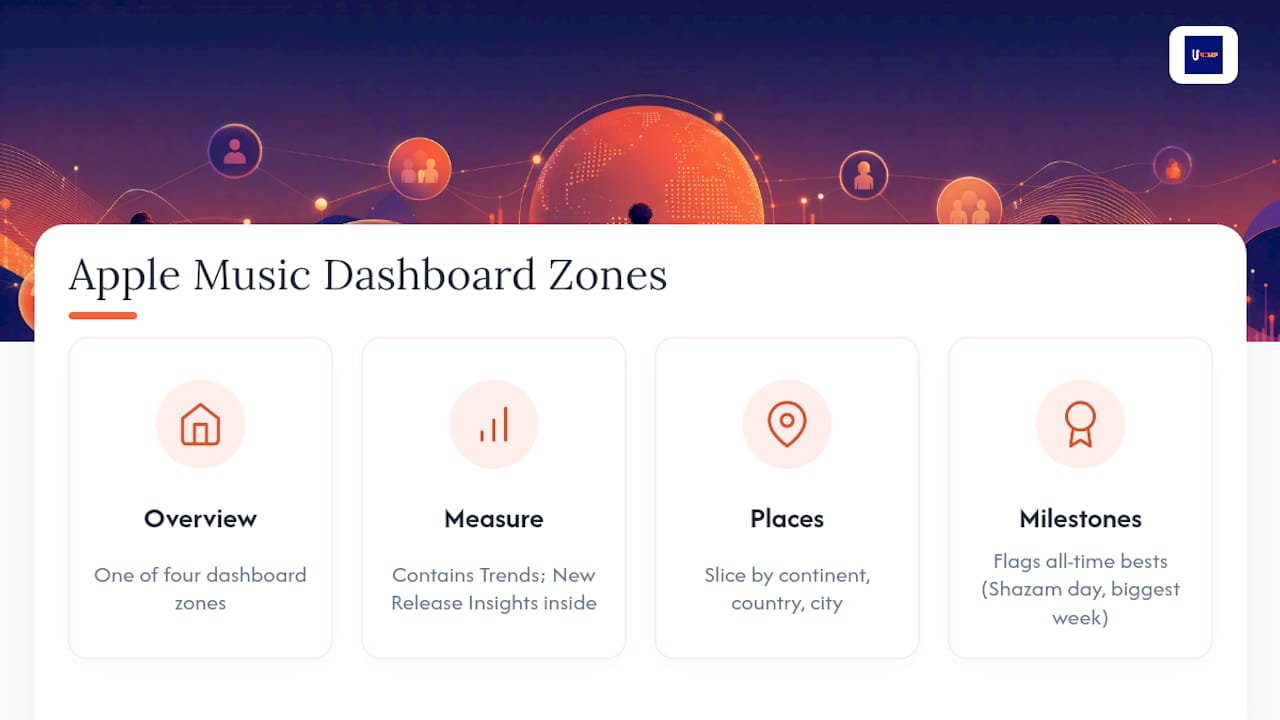
The dashboard is organized into four zones you’ll navigate constantly: Overview, Measure (which houses Trends), Places, and Milestones. New Release Insights sits inside Measure and activates automatically once you have a release live.
Trends is where the real digging happens. You can filter by song, album, or playlist, then slice further by gender, age, continent, country, city, or even radio station. Every timestamp you see is displayed in UTC, which trips people up when they’re trying to line up release-day numbers with their local clock.
On release day, check three things first: your top-played song, your top cities, and your top demographic segment. After that first week, shift into ongoing monitoring mode. Watch for shifts in your listener base, not just raw play counts, since a growing city or age bracket often signals where your next ad dollar or tour stop should go.
Pro Tip: Milestones inside the iOS app flag your all-time bests, like your highest Shazam day or your biggest streaming week. Screenshot these and post them. They’re built-in social proof, and you don’t have to export a single spreadsheet to use them.
Apple recommends confirming your artist-page mapping at least 10 days before a release. Miss that window and you risk showing up with incomplete data on the day that matters most.
How to Claim Your Artist Profile and Set Up Your Team
Getting access isn’t complicated, but it has a specific order. Skip a step and you’ll end up waiting on a verification email that never comes.
- Confirm your distributor has correctly mapped your artist name to your Apple Music catalog.
- Search for your artist page at artists.apple.com and request access, or claim it if it’s unclaimed.
- Verify your identity, usually through your distributor or a linked social account.
- Install the iOS app so you can check Milestones and Listening Now on the go.
- Invite collaborators and assign roles through iTunes Connect if you’re working with a manager or label team.
Role assignment matters more than most artists realize. If you want anyone to generate Music Analytics API keys or manage other users’ access, they need a Legal or Admin role, not just standard viewer access.
Pro Tip: If verification stalls for more than a few days, the holdup is almost always a mapping issue on your distributor’s end, not Apple’s. Contact them before you contact Apple.
Common snags include delayed catalog mapping, songs missing from your dashboard entirely, and Listening Now simply not appearing because your play volume hasn’t crossed Apple’s minimum display threshold yet.
Reading Apple Music Metrics the Right Way
Plays and unique listeners tell two different stories, and conflating them will lead you to bad decisions. Plays measure volume. Listeners measure reach. A song with 50,000 plays from 2,000 die-hard listeners behaves completely differently in a marketing plan than one with 50,000 plays spread across 40,000 people. The first tells you to double down on superfan engagement. The second tells you you’re reaching new ears and should push discovery content harder.
Shazam Count and Radio Spins are discovery signals, not vanity numbers. A spike in Shazam activity in a specific city means people are hearing your song somewhere outside your usual channels, maybe a bar, a car radio, a friend’s playlist, and reaching for their phone to find out who you are. That’s a strong cue to run geo-targeted ads in that exact market while the curiosity is fresh. Radio Spins tell you which stations are already playing you, which is your cleanest entry point for formal radio servicing.
Data freshness matters too. Apple refreshes Measure daily, but new numbers can take up to 48 hours to fully appear, and Listening Now only reflects a rolling 48-hour window. Don’t panic if Monday’s numbers look thin. Wait for the lag to catch up before you draw conclusions.
Privacy rounding is the other thing to keep in mind. Apple rounds demographic and city-level counts to protect individual listeners, so if you’re looking at a small city or a niche age bracket, expect the numbers to jump around a little rather than move smoothly. That’s rounding noise, not a real trend reversal.
Here’s a practical action checklist to run against these metrics:
- During release week, check Places and Trends daily to catch early city and demographic patterns.
- Use strong Shazam or radio cities as your first targets for paid promotion.
- Pull your top three to five cities from Places data before booking your next tour run.
- Test small ad budgets in cities showing early listener growth before committing to bigger spends.
Pro Tip: Pair a Milestone (like your first 10,000 Shazams) with your New Release Insights snapshot for a fast, credible post to send to playlist curators. Data-backed pitches land better than “please add my song” DMs.
Music Analytics API, Sales & Trends, and Third-Party Dashboards
Apple splits its deeper data access into two lanes. Apple Music for Artists (Measure) is built for fast, visual dashboards. Sales & Trends is the partner-facing counterpart, offering more granular filters and downloadable CSV reports, better suited to labels and distributors who need to reconcile numbers across a full roster.
For teams that want to build their own dashboards or automate reporting, the Music Analytics API returns aggregated, anonymized counts through endpoints like Audience Engagement and Audience Overlap. It’s genuinely useful, but it comes with real constraints:
- Generating API keys and managing user access requires a Legal or Admin role in iTunes Connect.
- Apple caps requests at 600 queries per minute.
- Individual queries have ID limits, for example, up to 100 song IDs per call.
- Demographic counts are rounded to the nearest 50 to protect listener privacy.
Third-party tools fill a different gap: cross-platform visibility. Songstats aggregates streaming stats, playlist placements, and chart positions across services, which is handy when you’re tracking a release on Apple Music, Spotify, and elsewhere without logging into four separate dashboards. It won’t replace Measure, but it’s a solid layer on top of it for artists managing multiple platforms at once.
Pro Tip: If you’re already tracking ad spend and pre-save data elsewhere, exporting your Apple numbers into a tool like UpNComer’s Data Analyst module lets you join click, ad, and streaming data in one view instead of eyeballing three separate spreadsheets during release week.
Why data discipline matters for independent artists
Checking these numbers once after a release doesn’t tell you much. The value shows up when you track them weekly, because that’s what reveals which cities deserve tour dates, which ads are actually converting, and which playlists moved the needle versus which just looked good on paper. Treat analytics as a habit, not a report card.
Turning Apple Data Into a Real Growth System
Reading your Apple Music analytics is only half the job. The harder part is acting on what you see fast enough for it to matter, and that’s usually where independent artists lose momentum, not from lack of data but from too many disconnected tabs.
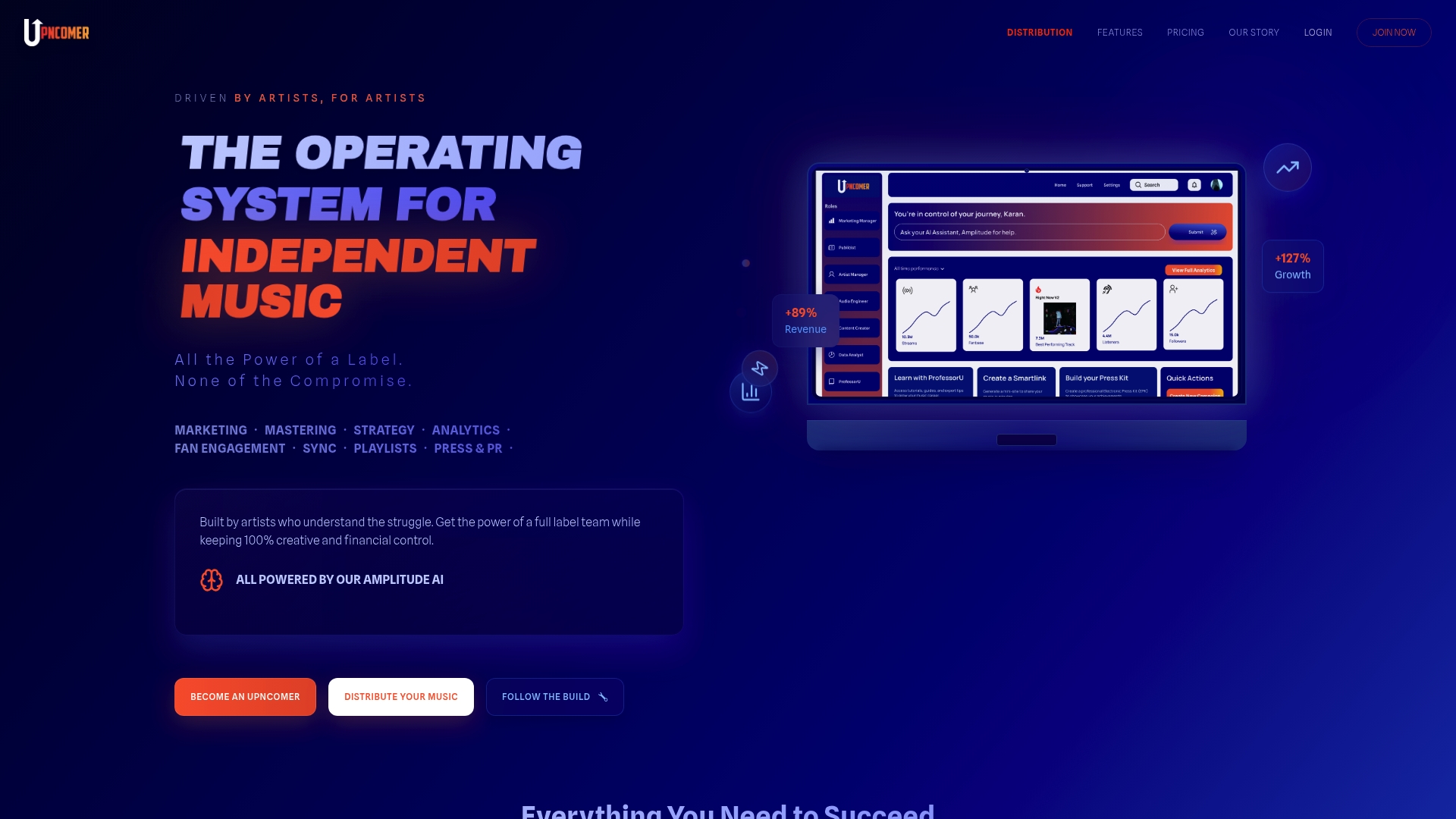
UpNComer was built to close that gap. Instead of toggling between Measure, your ad platform, and a spreadsheet tracking pre-saves, UpNComer’s Growth Engine and Data Analyst modules pull your streaming numbers alongside your campaign and audience data into one working view. That means when Shazam spikes in a new city, you can launch a targeted ad through the same platform where you’re already tracking the result, without exporting a single CSV. Amplitude AI then helps flag which patterns are worth acting on instead of leaving that judgment call entirely to you at 11 p.m. before a release deadline.
If you’re getting ready to release music and want your Apple mapping confirmed well ahead of time, check out UpNComer’s distribution tools and see how release setup and analytics tracking connect from day one.
Sources
- Understand your analytics - Apple Music Provider Support
- Songstats: Music Analytics - App Store - Apple
FAQ
How do I see my Apple Music analytics?
Log in at artists.apple.com or open the iOS app once your profile is claimed and verified. Your dashboard will show plays, listeners, Shazam counts, and more under the Measure tab.
Can you see statistics on Apple Music?
Yes. Apple Music for Artists gives you plays, listener demographics, city breakdowns, Shazam counts, and radio spins, all refreshed daily with a typical processing window of up to 48 hours.
How much money is 1,000,000 streams on Apple Music?
Apple doesn’t publish official per-stream rates, but third-party estimates put Apple Music’s payout at roughly $0.007 to $0.010 per stream.
How do I check how many plays a song has on Apple Music?
Open Measure, select the song under Trends, and check the Plays metric, which counts any listen lasting more than 30 seconds. For team access or automated tracking, the Music Analytics API can pull these counts programmatically.