
4000x4000 Master: Release Cover Art Specs for Indie Artists

The safest approach is to build one square master at 3000 to 4000 pixels per side, saved in sRGB at 24-bit color, as a flattened TIFF or high-quality JPEG. That single file clears Spotify’s requirements (640 to 10,000 pixels) and meets Apple Music’s 4000x4000 minimum, so you export once instead of rebuilding art for every platform. Don’t upscale a small image to hit these numbers: recreate it at full resolution instead.
TL;DR:
- Building a single 4000x4000 pixel, sRGB, 24-bit master in TIFF or high-quality JPEG simplifies delivery across multiple platforms and prevents repetitive redesigns.
- Using the recommended pixel dimensions and format, and maintaining strict metadata consistency, ensures your cover art meets Spotify, Apple Music, and label requirements.
- Rejections are usually caused by technical errors, content violations, or low-quality images, which can be fixed by re-exporting from the original full-resolution master.
- Always check artwork on a phone screen at thumbnail size before submitting, as details may disappear when scaled down.
- Automated export and metadata checks integrated into distribution workflows reduce errors and streamline the process of getting your cover art approved.
Table of Contents
- Cover art requirements at a glance
- How to build one master and export every delivery file you need
- Where Spotify, Apple, and labels actually differ
- Why cover art gets rejected and how to fix it fast
- Final checklist before you hit submit
- Why we built export checks into the release workflow
- Get your release out without the back and forth
- FAQ
- Sources
Cover art requirements at a glance
Before you open your design software, lock in these numbers. They come straight from platform documentation and label delivery guides, and they will save you a resupply request later.
| Spec | Recommended | Platform minimum |
|---|---|---|
| Aspect ratio | 1:1 square | 1:1 square |
| Pixel dimensions | 3000 to 4000 px per side | Spotify: 640 to 10,000 px; Apple Music: 4000x4000 px |
| Color space | sRGB, 24-bit | sRGB |
| File format | TIFF (archival) or high-quality JPEG/PNG (upload) | JPG, PNG, or TIFF |
| Compression | None or lossless | Varies by distributor |
A few rules keep this simple. Do flatten every layer before export, and do make sure your file’s embedded metadata matches your release title and artist name exactly. Don’t embed orientation metadata or an unusual ICC profile, since Spotify specifically flags this as a rejection risk. Don’t include third-party logos, retailer references, or your own promotional text on the art itself.
A practical cover art size guide backs this up: building one oversized square master and exporting smaller variants from it avoids the upscaling problems that cause the most rejections.

How to build one master and export every delivery file you need
Start by setting your canvas, not by designing around a specific platform. One master, built correctly, becomes every file you’ll ever need to submit.
- Create a new square canvas at 4000x4000 pixels, sRGB color mode, 300 PPI if your software asks (pixel dimensions matter more than DPI for digital delivery).
- Design with a safe margin: keep text, logos, and key visual elements away from the outer edge, since thumbnails crop tighter than full-size displays.
- Zoom out to thumbnail size periodically while you work; this helps you ensure your art meets playlist cover art considerations that curators expect. Artwork that reads clearly at 4000 pixels can turn into mud at 64 pixels on a phone screen.
- Flatten all layers and remove any alpha channel before export.
- Save a lossless flattened TIFF as your archive master, then export a high-quality JPEG or PNG (minimal compression) for actual distributor uploads.
- Name the file consistently, something like
artist-release-cover-master.tiff, and keep a matching naming pattern across every exported variant.
Pro Tip: Check your artwork on an actual phone screen before you submit it. Playlist and album grids shrink cover art down fast, and a detail that looks sharp on your monitor can disappear entirely at thumbnail size.
Our release checklist for independent artists walks through this alongside the rest of your pre-release technical prep, including audio delivery.
Where Spotify, Apple, and labels actually differ
Most of the confusion around cover art specs comes from assuming every platform wants the same thing. They don’t, even though a well-built master satisfies all of them at once.
- Apple Music also supports motion artwork for select displays, which is a separate asset delivered through your distributor, not a substitute for your static cover.
- Labels and distributors following UMG’s content guide often request flattened TIFF masters in the 3000 to 6000 pixel range with minimal compression, since TIFF holds up best through multiple downstream conversions.
Build to the strictest common denominator (Apple’s pixel floor and UMG’s format preference) and your file will clear every platform without a second export pass.
Why cover art gets rejected and how to fix it fast
Rejections almost always trace back to one of four categories, and each has a quick fix.
- Technical errors: wrong aspect ratio, dimensions below 4000x4000, or embedded ICC and orientation metadata that confuses the upload system. Fix it by re-exporting directly from your flattened master rather than patching the rejected file.
- Quality issues: visible pixelation or blur almost always means the source was too small and got stretched. Recreate the artwork at full resolution instead of upscaling it again.
- Content issues: promotional text, a streaming or retailer logo, a barcode, or a date on the artwork itself. Apple’s artist image guidelines treat these as automatic red flags, and other platforms follow similar logic.
- Rights gaps: using a stock photo or third-party image without a license or written permission you can produce if asked.
Pro Tip: Keep your original flattened master file even after your release goes live. When a distributor flags an issue, re-exporting from the source takes minutes; recreating a lost master can cost you days.
Our guide to independent artist distribution covers more on resolving distributor pushback without losing your release date.
Final checklist before you hit submit
A few minutes of verification here prevents the far longer delay of a rejected upload and a resupply request.
- Confirm your file name uses safe characters and matches your release slug (for example,
artist-release-cover-final.tiff). - Match your artist name and release title in the file’s metadata exactly to what you entered with your distributor.
- Pull any written permission for third-party images, fonts, or stock assets into one folder you can access quickly.
- View the art at full size and at thumbnail size on a phone screen as your last check.
Why we built export checks into the release workflow
Most resupply requests trace back to the same handful of mistakes: wrong color profile, a logo that slipped into the design, metadata that doesn’t match. We built automated format, color profile, and metadata checks into the release workflow so those errors surface before submission, not after a distributor flags them. One correct master, checked once, moves through every platform without rework.

Get your release out without the back and forth
We handle music distribution with integrated export checks and metadata sync built into the same workflow, so the cover art you build using this guide gets verified against platform requirements before it ever reaches a store or streaming service. That means fewer resupply emails and less guessing about whether your file will clear review.
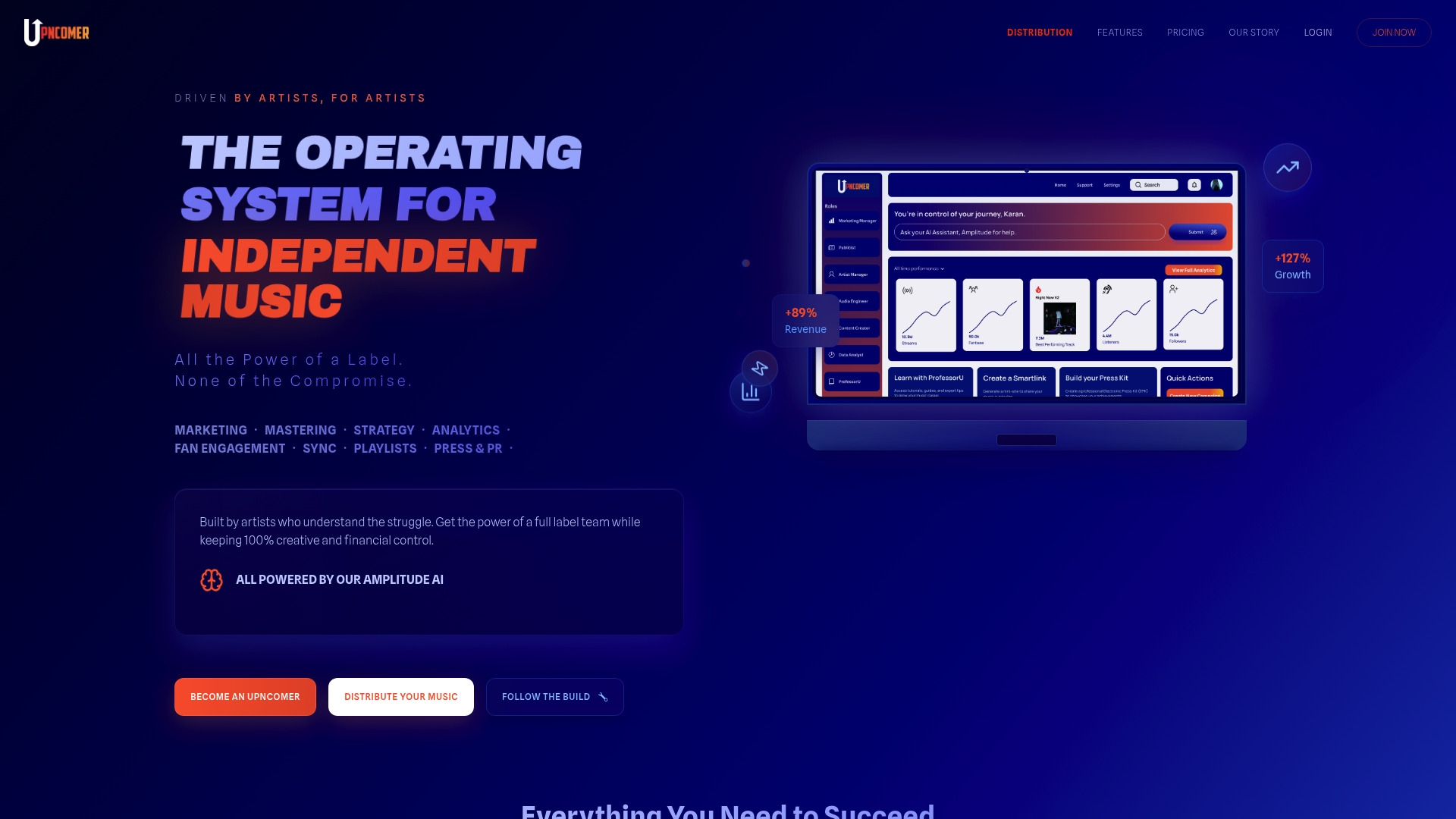
Here’s what that looks like in practice:
- Upload your master once and our system checks format, color profile, and dimensions against current platform requirements.
- Metadata you enter syncs automatically across stores instead of requiring manual re-entry for each one.
- Our UpNComer Pro plan bundles distribution with mastering, mixing, and the rest of our artist tools in one place, starting at $27 per month or $300 per year.
If you’re ready to move past manually checking specs for every platform, start your distribution with us and get your next release out clean the first time.
FAQ
What is the 70/30 rule in cover art?
This isn’t a standard rule referenced in platform documentation from Spotify, Apple Music, or major label content guides. If you’ve heard it applied to cover art, it’s most likely a general design principle about balancing focal elements against negative space rather than an official spec, so follow the pixel and format requirements above instead.
How do I make CD cover art versus digital cover art?
CD packaging involves physical print dimensions, bleed margins, and spine width that digital releases don’t need, so the two are different design jobs. For purely digital releases, build the square sRGB master described above and skip print-specific settings like CMYK conversion or bleed.
How do I add cover art to local music files?
Most music file formats (MP3, FLAC) let you embed artwork directly into the file’s metadata using tagging software, separate from what you submit to a distributor. For distribution, submit your cover art as its own image file rather than embedding it, since platforms extract and display it independently of the audio file’s internal metadata.
What file format should I use for cover art delivery?
A flattened, lossless TIFF is the safest archival master, matching what label guidance like UMG’s content guide requests for delivery. For actual platform uploads, a high-quality JPEG or PNG exported from that same master works across Spotify and Apple Music without quality loss.
Sources
- Cover art - UMG content guide
- Cover art size guide (practical recommendation)
- Create motion artwork - Apple Music for Artists