Indie Artists: Master for Spotify, Test via Encode + Playlist, -1 dBTP
Master for translation, not for a number. Spotify normalizes every track toward -14 LUFS integrated, so a louder master gets turned down and gains nothing. Keep your True Peak around -1 dBTP, deliver one solid high-resolution stereo master, and run it through the encode-and-playlist checks below before you call it done.
TL;DR:
- Master by targeting a True Peak around -1 dBTP with 4x oversampling to avoid inter-sample peaks after encoding and lossy compression.
- Check integrated LUFS across the full track, not just loud sections, to ensure proper normalization at around -14 LUFS.
- Re-encode the mastered file to AAC or Ogg Vorbis and measure the integrated LUFS and True Peak again to identify codec-induced peaks or artifacts.
- Listen to your track on multiple devices and within playlists to detect any distortion or loudness inconsistencies that manual checks may miss.
- For albums, balance perceived energy across songs and consider sequencing to maintain consistent dynamics, accounting for Spotify’s album normalization.
Table of Contents
- What Spotify Actually Does With Loudness Normalization
- Priority Mastering Checklist for a Spotify-Ready Master
- Testing Your Master After Encoding and in Playlist Context
- Album Normalization and Sequencing
- How UpNComer Supports a Spotify-Ready Master
- When to Master Loud Anyway
- Get Your Master Distribution Ready Without the Extra Steps
- Sources
- FAQ
What Spotify Actually Does With Loudness Normalization
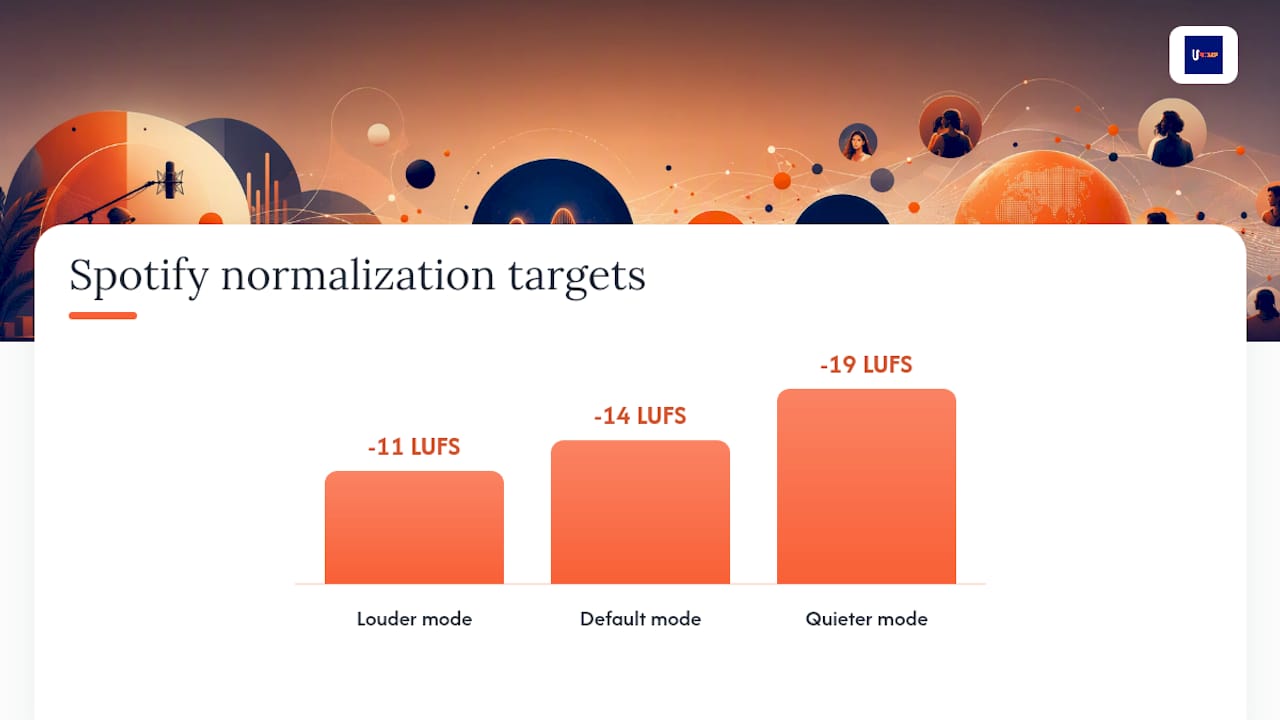
Spotify measures the loudness of every track on upload and applies a playback gain offset to bring it toward a target level. The default is -14 LUFS integrated, and it is not a rendering step. Spotify doesn’t touch your file. It adjusts the volume at the moment of playback, the same way a listener would nudge a volume knob.
Premium listeners can override this in their app settings, choosing louder (-11 LUFS) or quieter (-19 LUFS) normalization modes. Either way, the math works the same: tracks mastered hotter than the target get turned down, and quieter tracks get turned up, within Spotify’s documented normalization behavior.
Two measurement concepts matter here, and confusing them causes most mastering mistakes:
- Integrated LUFS averages loudness across the entire track, from the first second to the last silence.
- Short-term and momentary LUFS measure a few seconds or fractions of a second, useful for watching dynamics in real time but useless for predicting your normalization offset.
Spotify’s stated target is -14 LUFS integrated, measured across the whole file, which is why checking only your loudest chorus tells you almost nothing about how the platform will treat your track.
True Peak matters just as much as loudness. Spotify recommends keeping True Peak under roughly -1 dBTP because lossy codecs like AAC and Ogg Vorbis can introduce inter-sample peaks that a standard peak meter never shows you.
Priority Mastering Checklist for a Spotify-Ready Master
Work through these in order. Each step protects the one after it.
- Measure integrated LUFS across the full track. Set your loudness meter to integrated mode and let the whole song play, intro through fadeout. A chorus-only reading will lie to you, since integrated LUFS averages the entire file, quiet verses included.
- Set your true peak limiter to about -1 dBTP. Use 4x oversampling on the limiter itself, not just the meter. This leaves headroom for codec conversion without forcing you to sacrifice perceived loudness, since normalization erases any advantage from pushing past that ceiling anyway.
- Protect your transients and crest factor. A crest factor of roughly 6 to 10 dB between peak and RMS usually signals a master that still breathes. Over-limiting collapses that gap and produces a mix that sounds tired the moment it’s turned down to -14 LUFS.
- Control the top end and mono-fy your sub-bass. Harsh high frequencies get more fatiguing at normalized playback levels, not less. Keep bass below roughly 100 to 120 Hz centered in mono so it holds together after lossy encoding.
- Export a high-resolution WAV with complete metadata. Deliver 24-bit at your session’s native sample rate (44.1kHz or 48kHz), with ISRC, artist, and title metadata intact for a clean distribution handoff.
Pro Tip: Automate a small volume dip into your loudest chorus during mixdown, one or two dB, instead of relying on the limiter to catch it. It preserves punch and gives your limiter less work at the exact spot where distortion is most audible.
Skip step three at your own risk. A track that measures -14 LUFS but was squashed to get there will sound flat and lifeless the instant Spotify’s normalization kicks in, because there’s no dynamic contrast left to normalize.
Testing Your Master After Encoding and in Playlist Context
A mastering session isn’t finished when you bounce the WAV. It’s finished when you’ve heard the compressed version Spotify actually streams.
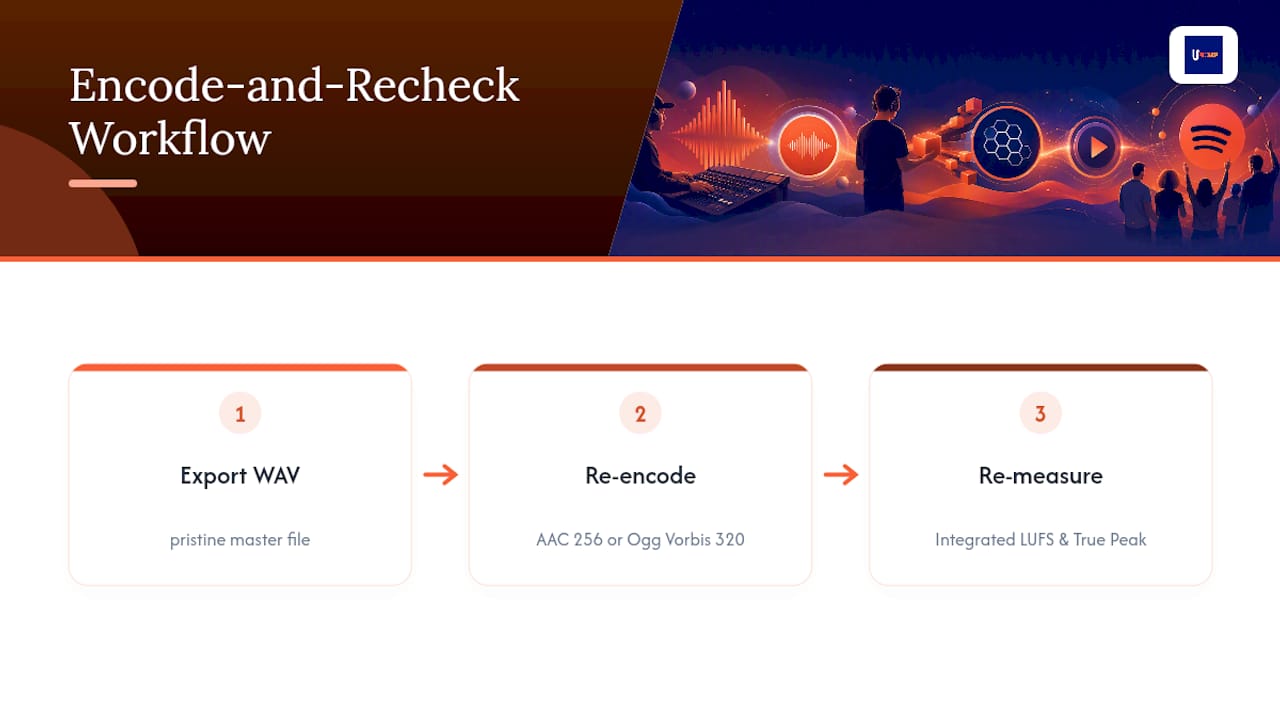
Export your master and re-encode it to AAC 256 or Ogg Vorbis 320, matching the bitrates Spotify commonly delivers, then re-measure integrated LUFS and True Peak on that encoded file. This step catches problems a pristine WAV never reveals. Codecs occasionally introduce inter-sample peaks or subtle artifacts that only show up once the file has actually been compressed, which is why mastering guides recommend an encode-and-recheck step as standard practice rather than an optional extra.
Next, level-match your master against two or three commercial reference tracks in the same genre, within about 0.5 LU, and A/B them back to back inside an actual playlist. This tells you whether your track holds its own next to tracks a listener already knows, which matters more than any isolated LUFS reading.
Listen on at least three device types: studio monitors, earbuds, and a phone speaker. Check at both a normal listening volume and a quiet late-night level. If you hear distortion, harshness, or a track that disappears next to its neighbors, go back to the limiter stage before you touch distribution.
For an EP or album, play the tracks back to back without stopping. Listen for jumps in perceived loudness between songs. That check catches inconsistencies a single-track review will never expose.
Album Normalization and Sequencing
Spotify applies album-mode normalization to full releases, calculating one consistent gain offset and applying it across every track on the project rather than adjusting each song individually. That means the loudest and quietest tracks on your album keep their relative balance exactly as you mixed them.
- Balance perceived energy across the whole project before finalizing, not just within each song.
- For a single, optimize that one track in isolation; for an album, prioritize consistency between tracks over squeezing extra loudness out of any one of them.
- Small manual level trims between tracks, a fraction of a dB, can smooth transitions that automated normalization won’t fix on its own.
Sequencing decisions belong in this conversation too. A quiet interlude sitting between two loud tracks can feel jarring even after normalization, since Spotify’s album-mode behavior preserves your relative dynamics rather than flattening them.
How UpNComer Supports a Spotify-Ready Master
Running every one of these checks by hand, encode, re-measure, playlist A/B, device sweep, adds up fast when you’re also writing, recording, and planning a release. UpNComer’s platform maps directly onto this workflow so you’re not juggling five separate tools.
- An AI mastering tool can handle a first pass, giving you a master focused on translation before your manual tweaks.
- Export workflows can help you check True Peak limits before a file reaches distribution.
- Distribution tools can deliver a single, consistent master to Spotify and other platforms from one source file.
- Streaming analytics tools provide performance data once your track is live, showing how it performs in playlists.
Pro Tip: Run your track through UrStudio’s mastering pass first, then pull the file back into your DAW for a manual true-peak check. AI mastering handles tonal balance fast; your ears still catch what a limiter algorithm can’t.
For deeper technique, UpNComer’s guide on AI mastering audio walks through how automated tools fit into a full production chain.
When to Master Loud Anyway
Translation-focused mastering wins most of the time, but not always. A club edit or a track built for DJ sets still benefits from a hotter, more aggressive master, since that context has nothing to do with Spotify’s normalization curve. If you’re chasing radio or sync placements alongside a streaming release, consider producing a second version tuned for that specific use rather than compromising your streaming master to serve both.
Inside Spotify and inside playlists, though, the quieter, more dynamic master usually wins on repeat listens. Louder doesn’t buy you anything once normalization applies, and a squashed track loses the contrast that makes a chorus feel like a chorus.
Don’t guess which approach is right for your track. Bounce two versions, run them both through the encode-and-playlist test described above, and let your ears settle the argument.
— Karan
Get Your Master Distribution Ready Without the Extra Steps
Once your master passes the encode-and-playlist tests, the next bottleneck is usually distribution logistics: metadata, splits, delivery timing, and knowing whether the track actually performs once it’s live.
Instead of bouncing between a mastering tool, a separate distributor, and a third analytics dashboard, you run the whole sequence, mastering pass, true peak check, delivery, and post-release streaming analytics, inside one system. That’s less time spent stitching tools together and more time spent making the next track. Head to the Distribution page to start your release workflow and see how your master performs once it’s live.
Sources
- Loudness normalization on Spotify
- Mastering
- Mastering for Spotify: Why Everything You Know Is Wrong (And What To Do About It)
FAQ
How should I master for Spotify?
Master to preserve dynamics and transients rather than chasing a specific LUFS number, keep True Peak around -1 dBTP, and verify the result by encoding to AAC or Ogg and re-measuring before you deliver the final file.
How many streams on Spotify do you need to make $5,000 a month?
Per-stream payouts vary by market, subscription type, and royalty agreements, so there’s no single stream count that guarantees a fixed dollar figure. Independent artists typically need sustained catalog growth across multiple tracks and platforms rather than relying on one song’s stream count.
Why are people getting rid of Spotify?
Some listeners cite concerns over payout rates or platform policy changes, but Spotify remains among the largest streaming services by user base, and many independent artists continue to treat it as a core distribution channel.
How many streams on Spotify do you need to make $10,000?
The exact stream count depends on royalty splits, listener geography, and subscription tier mix, so there’s no fixed universal number. Growing streaming revenue reliably comes down to consistent release planning and playlist placement over time, which platforms like UpNComer’s Growth Engine and Data Analyst are built to track.